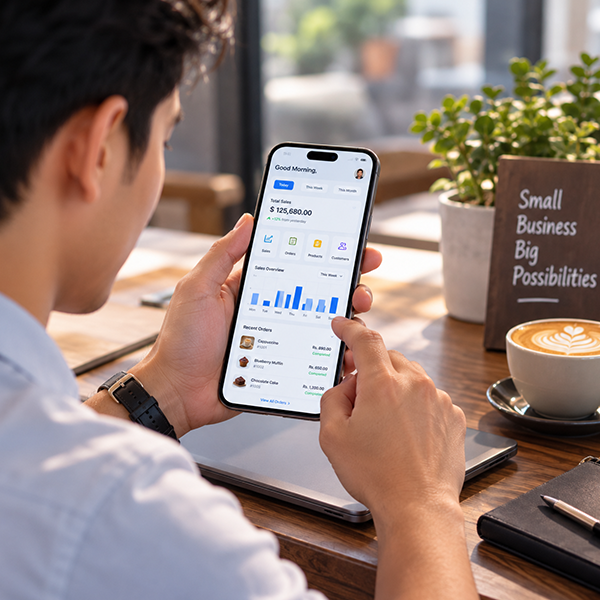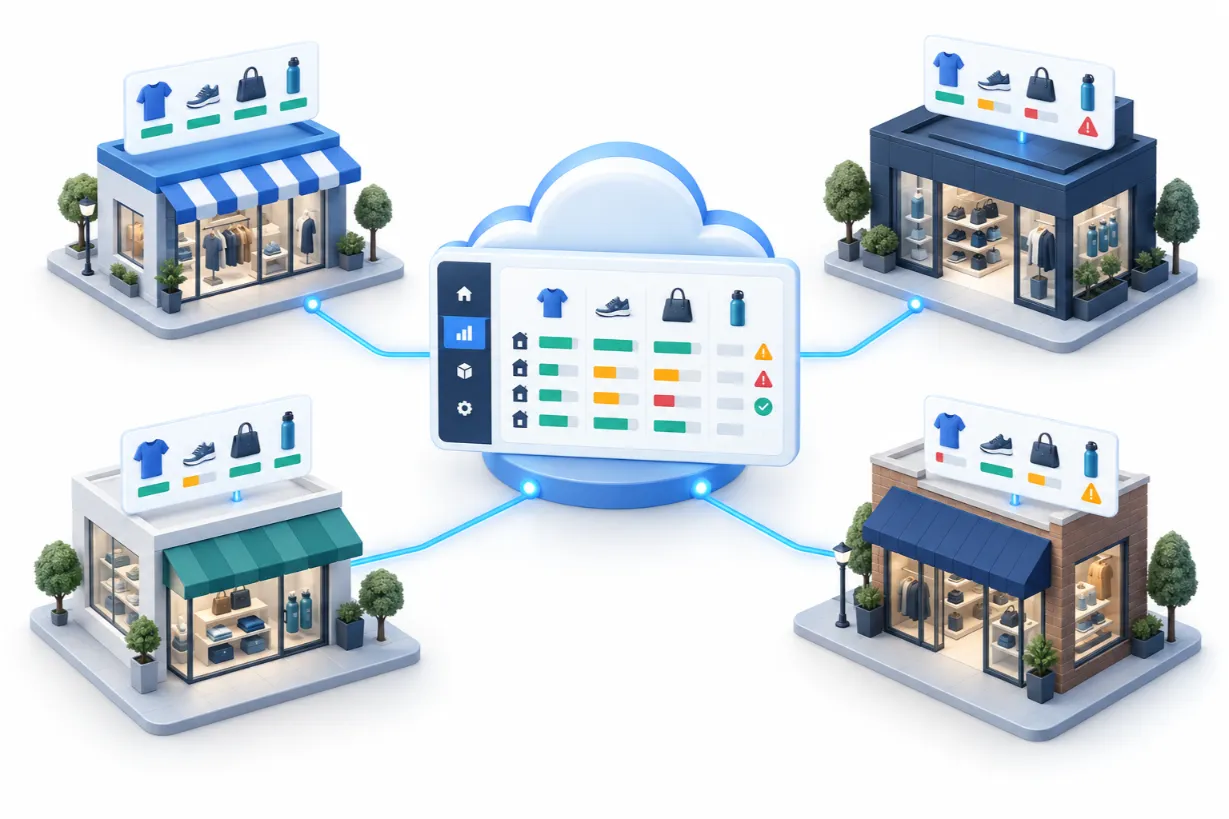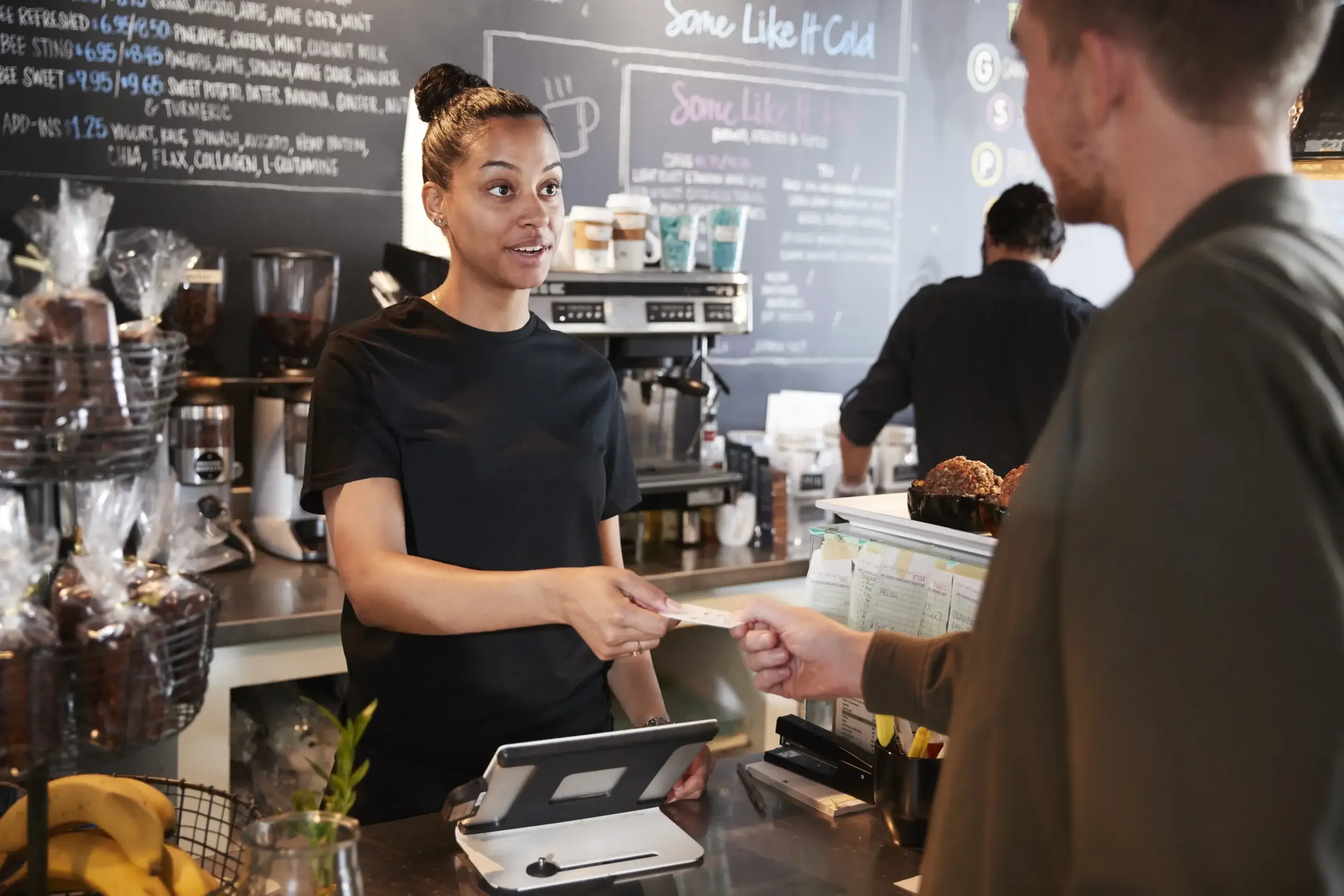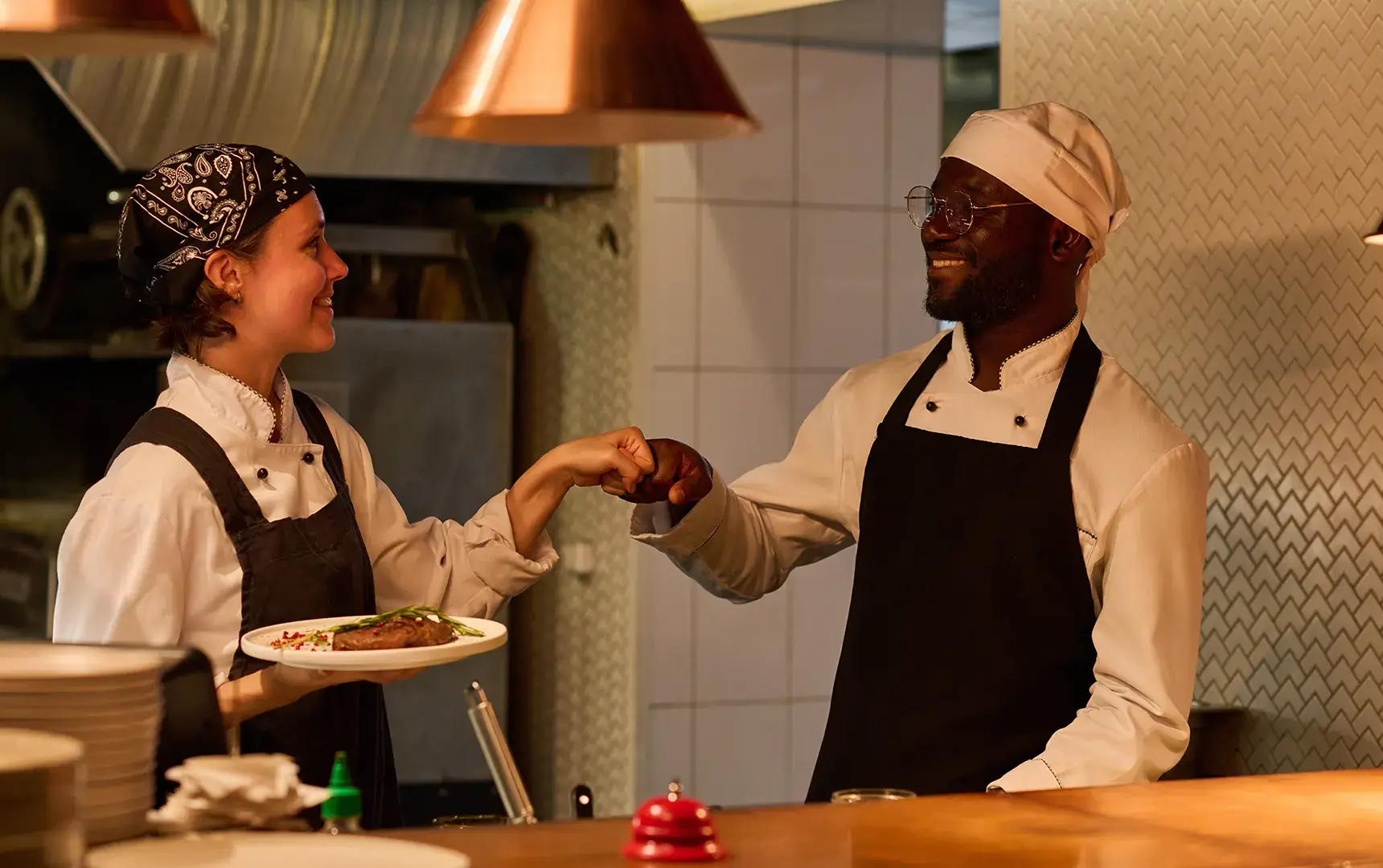

For a waiter, a POS system is the single interface that connects the dining room, the kitchen, and the payment terminal. It replaces the register-as-destination model with a mobile tool: order entry, menu lookup, table status, and checkout all happen from the same handheld device, at the table.
By the numbers: Restaurants that move order entry to handheld POS devices commonly report meaningfully faster ticket times and fewer kitchen order errors compared with paper-and-relay ordering, since the order reaches the kitchen the instant it's confirmed rather than after a walk to a fixed terminal.
Everything a waiter experiences on the floor depends on decisions made before the restaurant opens.
Generic "POS training" undersells what different roles actually need:
Mock service - practicing split bills, voided items, and declined cards in a low-stakes setting - builds the muscle memory that prevents fumbling during a real rush.
Once training is done, daily use of the POS follows a consistent sequence:
Most POS/KDS pairings track each item through a small set of states - typically submitted → cooking → ready → served → paid. This matters to waiters for one practical reason: it removes the guesswork of walking to the kitchen to check on a dish. A glance at the handheld shows exactly which tickets are ready for pickup, which cuts down both wasted trips and food sitting under a heat lamp too long.
| Issue | What a waiter should do |
|---|---|
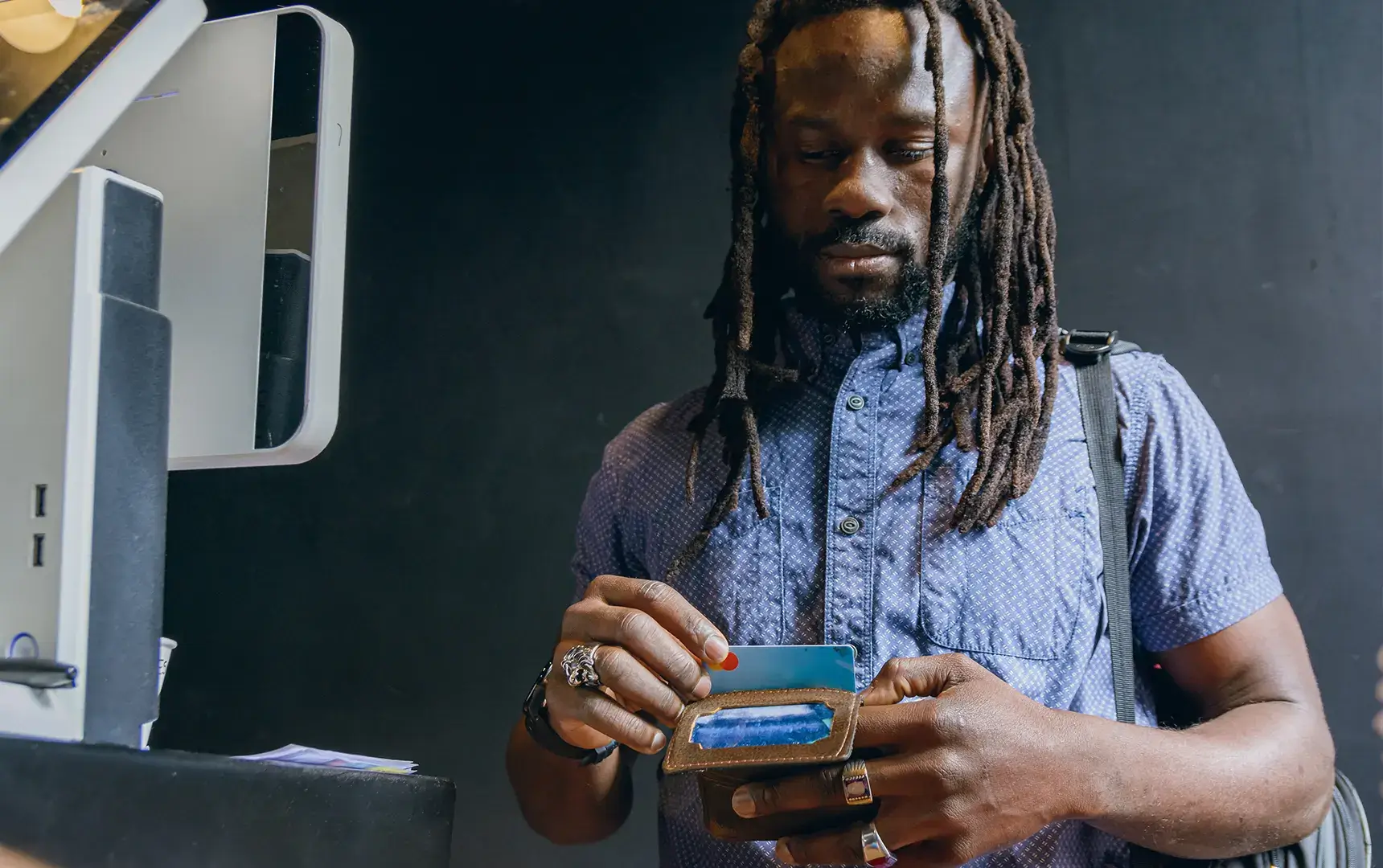
| Card payment declined | Reattempt once, then offer an alternate payment method; never re-run a card repeatedly. |
| Order didn't reach the kitchen | Check the device's connection status and resend; confirm on the KDS before assuming it printed. |
| Internet/network drops mid-shift | Continue on offline mode if available; orders and payments sync once the connection returns. |
| Wrong item or modifier entered | Void the line item under manager permission and re-enter - don't edit after it's fired to the kitchen. |
| Device freezes or won't respond | Restart the device first; escalate to a manager or support line if the issue persists. |
A POS system's value doesn't stop at closing time.
SalesPlay POS brings ordering, table management, kitchen communication, billing, and staff tracking into one connected restaurant POS system. For waiters, this means many of the tasks performed during a shift can be managed directly through the POS rather than relying on handwritten orders or repeated trips between the dining area and counter.
With the SalesPlay Tablet Ordering App, waiters can take customer orders using a tablet and send them directly to the main POS system, KOT printer, or KOT/BOT Display. This helps restaurants create a more connected workflow between front-of-house and kitchen teams.
Waiters can also use product modifiers when entering an order, making it easier to record requests such as extra cheese, additional toppings, sauces, or other available customizations.
SalesPlay supports table and service area management for restaurants and cafés. Restaurants can create standard or graphical table layouts, allowing staff to select a table, add an order, save the bill, and return later to add more items before payment.
The graphical table layout also helps staff distinguish between available and occupied tables. If guests move during service, SalesPlay also supports transferring an order from one table to another.
Orders entered through SalesPlay can be sent to Kitchen Order Ticket (KOT) or Bar Order Ticket (BOT) printers and displays.
The SalesPlay KOT/BOT Display App automatically displays incoming orders and shows the waiting time for each order. This gives kitchen and bar teams a digital view of incoming orders while reducing the need for waiters to manually relay order information.
When a group wants to pay separately, SalesPlay's Split Order / Split Check feature allows staff to divide one order into multiple bills and move individual products into the appropriate split.
SalesPlay also supports cash, card, and other configurable payment types. With multi-payment enabled, a single receipt can be paid using a combination of payment methods, such as part cash and part card.
SalesPlay supports both total discounts and line-item discounts. Depending on the restaurant's setup and staff permissions, discounts can be applied to the entire transaction or to selected products, helping staff handle promotions and approved customer discounts directly through the POS.
Restaurants can also use SalesPlay QR Ordering to give customers another way to order. Customers scan a QR code, browse the digital menu, and submit their order from their own phone.
New QR orders appear in the SalesPlay POS App, where staff can review and accept or reject them. Accepted orders can then be prepared, sent through the KOT/BOT workflow, and completed through the POS.
This allows restaurants to use waiter-assisted ordering and customer self-ordering within the same POS environment.
Restaurants can create waiters as Other Staff in SalesPlay and assign them to receipts. This allows managers to track sales associated with individual staff members and use the information for performance monitoring and commission calculations.
SalesPlay's Employee Management module also provides employee-specific sales tracking and access-right management for businesses that need more detailed staff controls.
SalesPlay includes an Offline Mode that allows basic receipt processing to continue when an internet connection is unavailable. Offline receipts are stored on the device and can be synced to the SalesPlay Back Office once the connection is restored.
Some advanced functions still require an internet connection, but offline billing helps restaurants continue essential sales operations during temporary connectivity issues.
From taking an order at the table to sending it to the kitchen, managing the bill, accepting payment, and tracking staff sales, SalesPlay POS connects key restaurant service activities within one system.
For restaurants looking to reduce manual order handling and give waiters a more organized way to manage service, SalesPlay provides tools for tablet ordering, table management, KOT/BOT, split checks, flexible payments, QR ordering, staff tracking, and offline billing.
See how SalesPlay POS can support your restaurant's day-to-day service.
Yes. While modern POS systems are designed to be intuitive, staff still need training on order entry, modifiers, bill splitting, and payment handling. SalesPlay POS supports role-based permissions so restaurants can structure training by job function.
Yes. Most POS systems, including SalesPlay, let waiters split a bill by item, by seat, or by percentage, removing manual calculation and reducing billing errors for group tables.
When a waiter submits an order on the POS, it's sent instantly to a Kitchen Display System or ticket printer, cutting out verbal relays and handwriting errors between front-of-house and back-of-house staff.
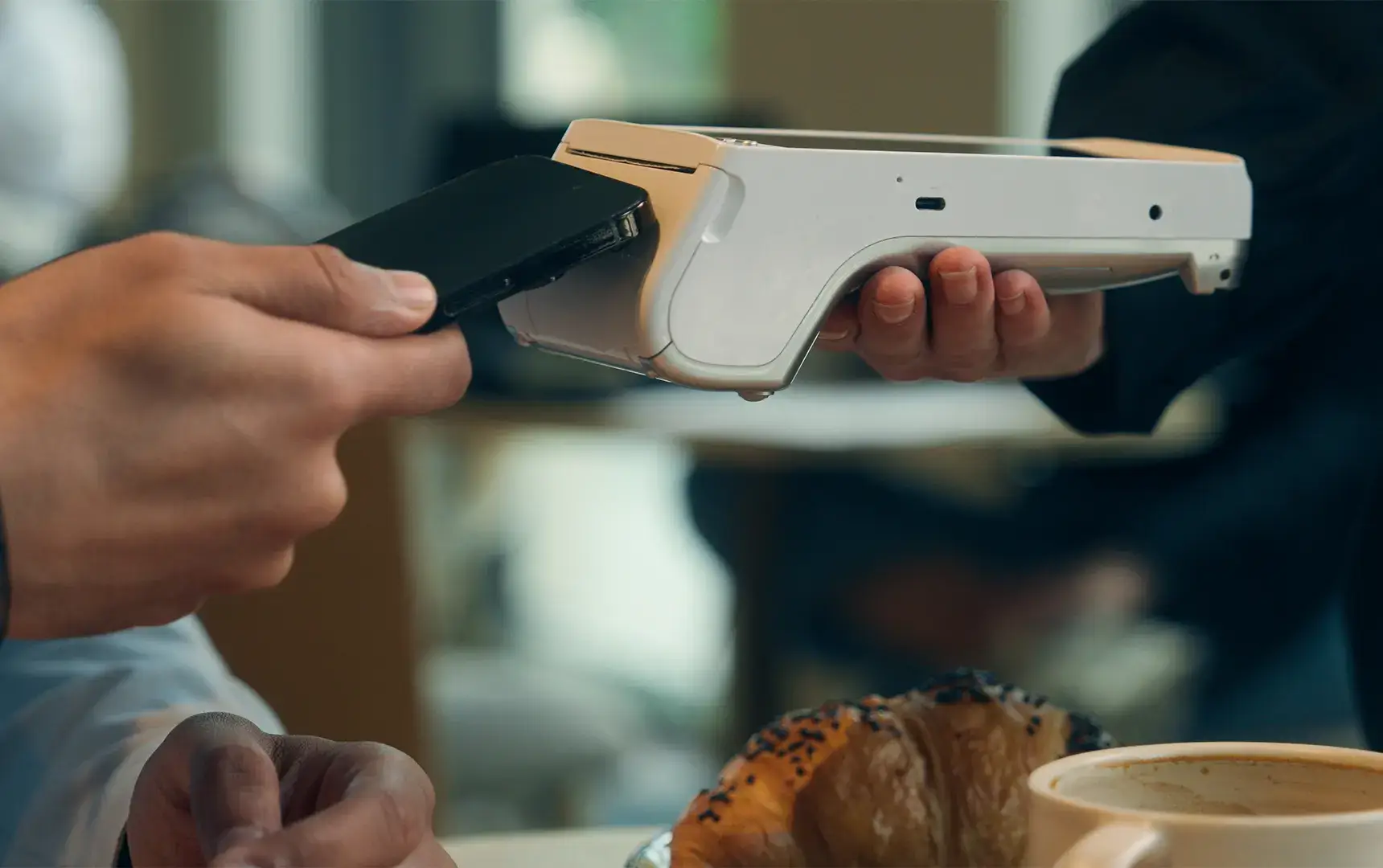
Yes. Handheld and mobile POS devices let waiters close out a check at the table, which speeds up turnover and keeps the guest's card in view for added security.
Many POS systems include built-in CRM features that let waiters view past orders, dietary notes, and loyalty status, enabling more personalized service.
Systems with offline mode, including SalesPlay, let waiters keep taking orders and processing payments during an outage; the data syncs automatically once connectivity returns.
POS reporting shows sales per waiter, average table turnover time, and upselling rates, giving managers objective data for feedback, scheduling, and recognition.
Reputable POS systems use encryption and comply with PCI DSS standards, so both waiters and customers can trust that card data is handled securely.
A waiter's job is speed and accuracy under pressure, and the right POS system is what makes both possible - from the moment an order is entered tableside to the report a manager pulls the next morning. If you're evaluating a system for your floor staff, SalesPlay POS offers handheld ordering, offline mode, and role-based reporting built for exactly this workflow.