QR Ordering

Let Customers Scan the QR Code, Browse the Menu, and Order Directly from Their Table

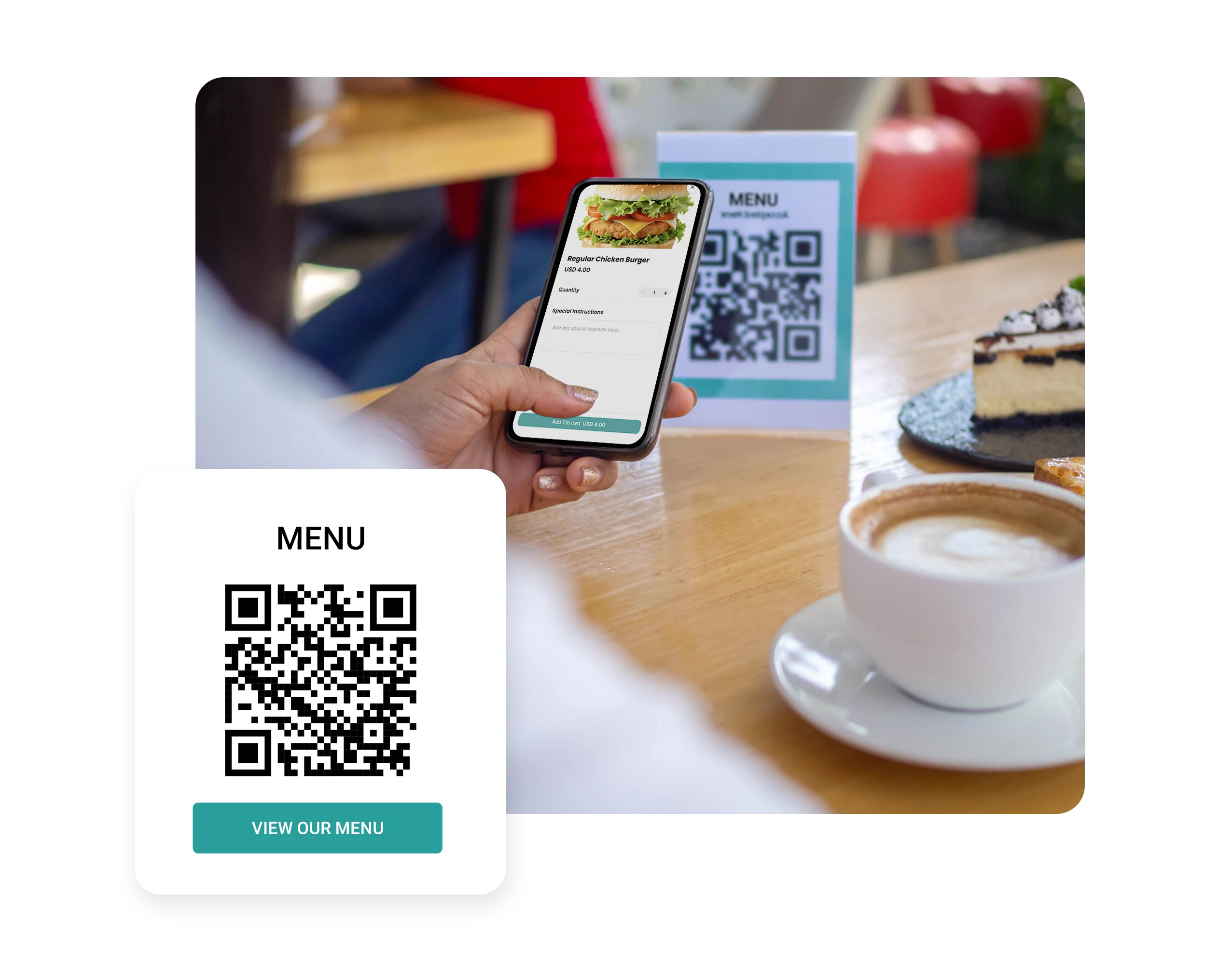
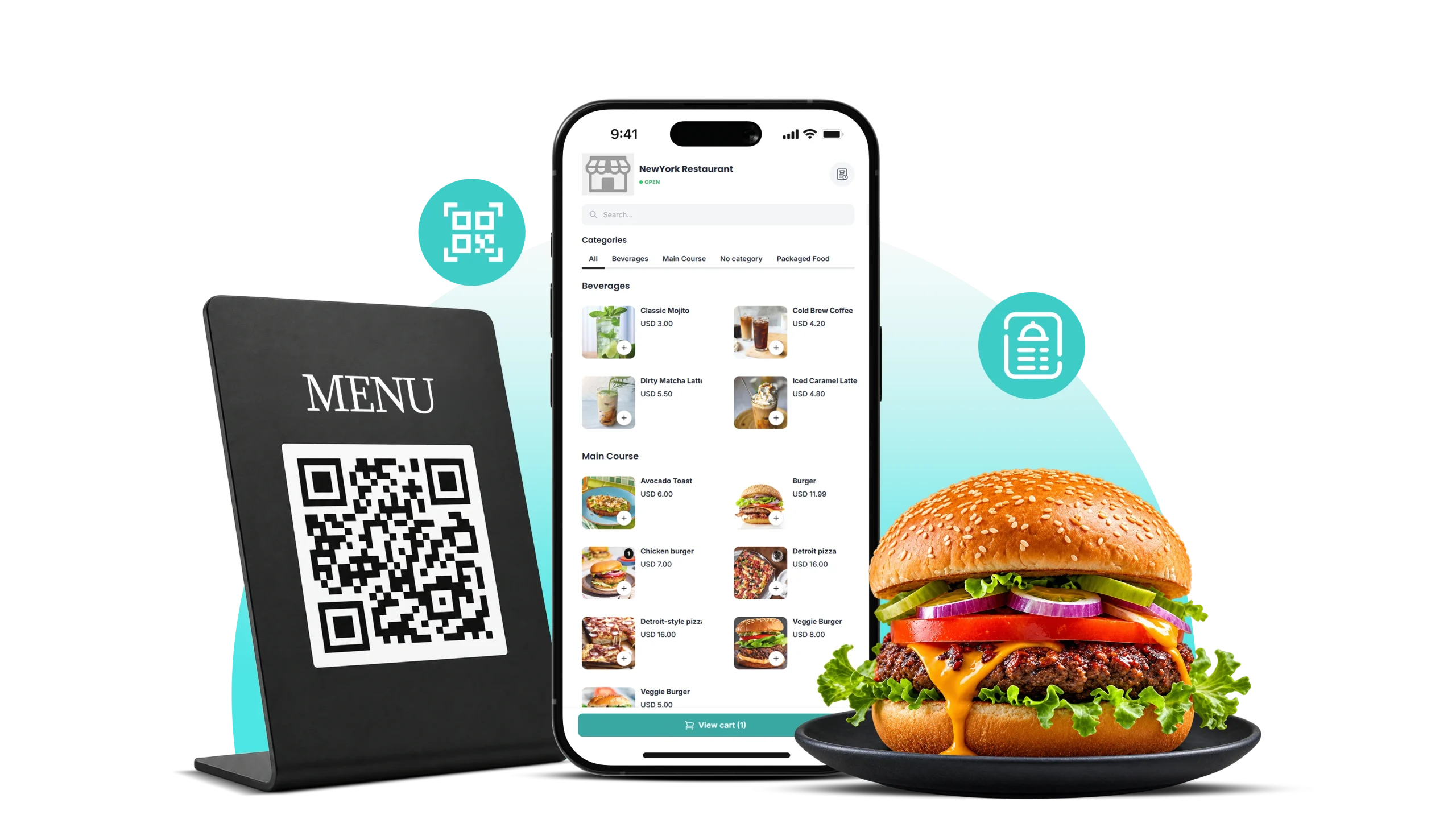
Give customers an easy way to order with QR Ordering. They can scan a QR code at their table or at the entrance, view the digital menu, and place orders using their own smartphone. Orders are sent to the POS, where staff can review and process them.
QR Ordering
Why Choose SalesPlay QR Ordering?

Why Choose SalesPlay QR Ordering?

  • Receive orders directly in your SalesPlay POS.
  • Reduce manual order entry and improve order accuracy.
  • Reduce waiting time and pressure on your staff.
  • Allow customers to order additional items without waiting for a server.
  • Support over 15 languages for a more convenient ordering experience.
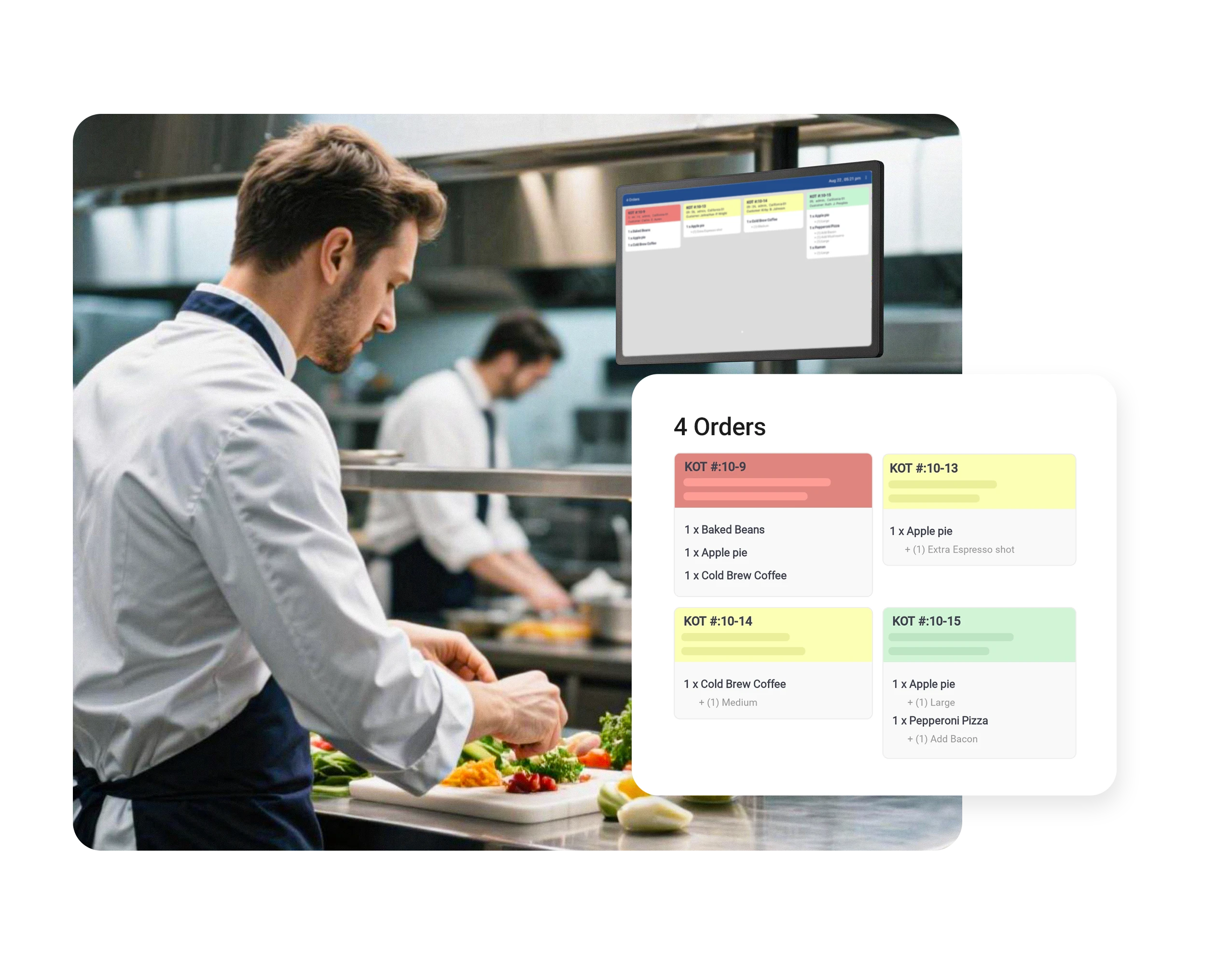
  • Connect approved orders with your kitchen or bar through KOT/BOT printers or displays.
  • Allow staff to review, approve, reject, or edit customer orders from the POS.
Table & Service Area QR Ordering

Table & Service Area QR Ordering

Create QR codes for individual tables or service areas, making it easy to identify where each order comes from.
  • Generate QR codes for individual tables or service areas during the initial setup.
  • Each QR code is associated with the relevant shop, terminal, order type, and service area.
  • Print and place each QR code in its corresponding location.
  • Customers can then scan the QR code from that specific table or service area to begin ordering.
Contactless Table Ordering

Contactless Table Ordering

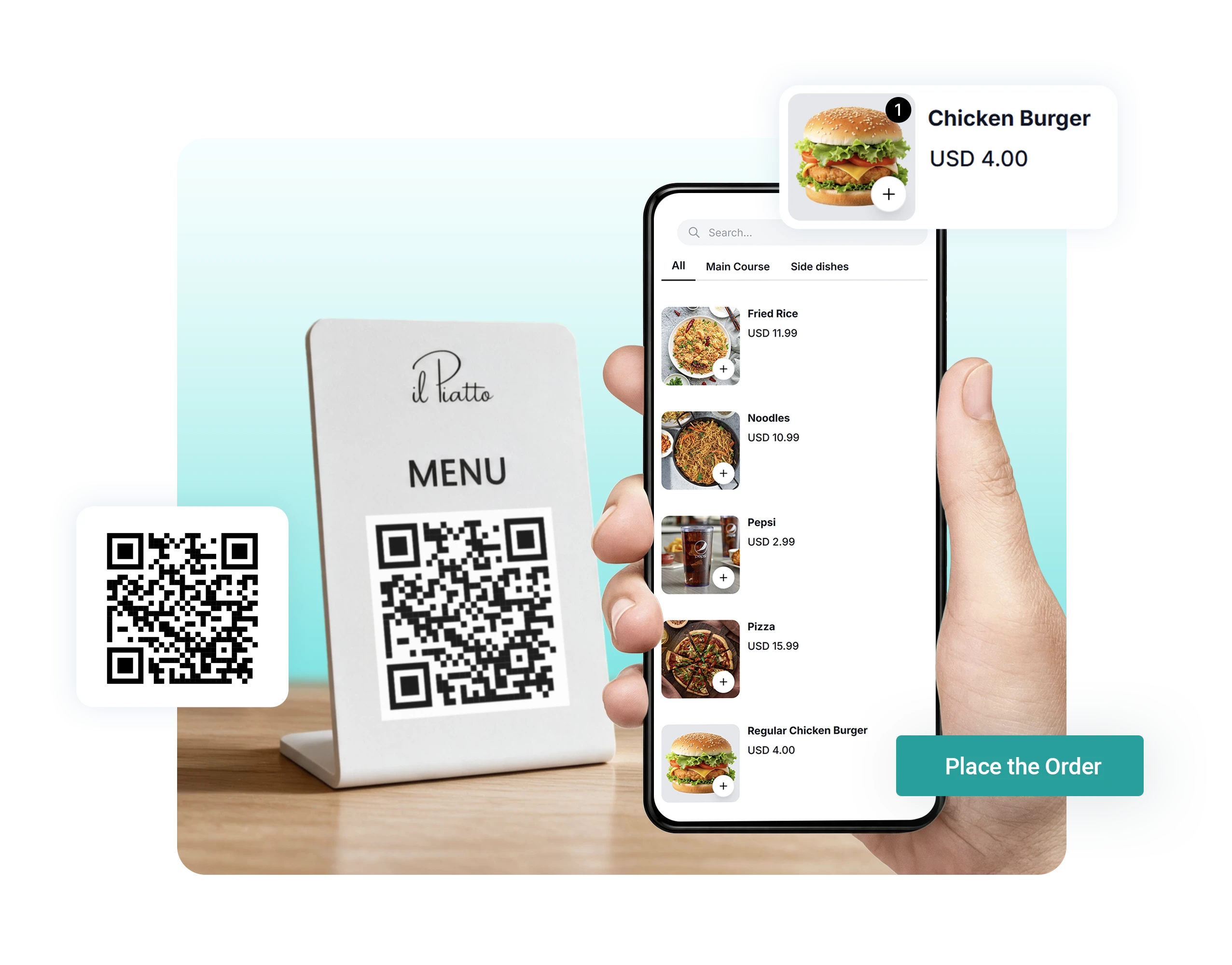
Let customers quickly scan, browse, and order from their table using their own smartphones.
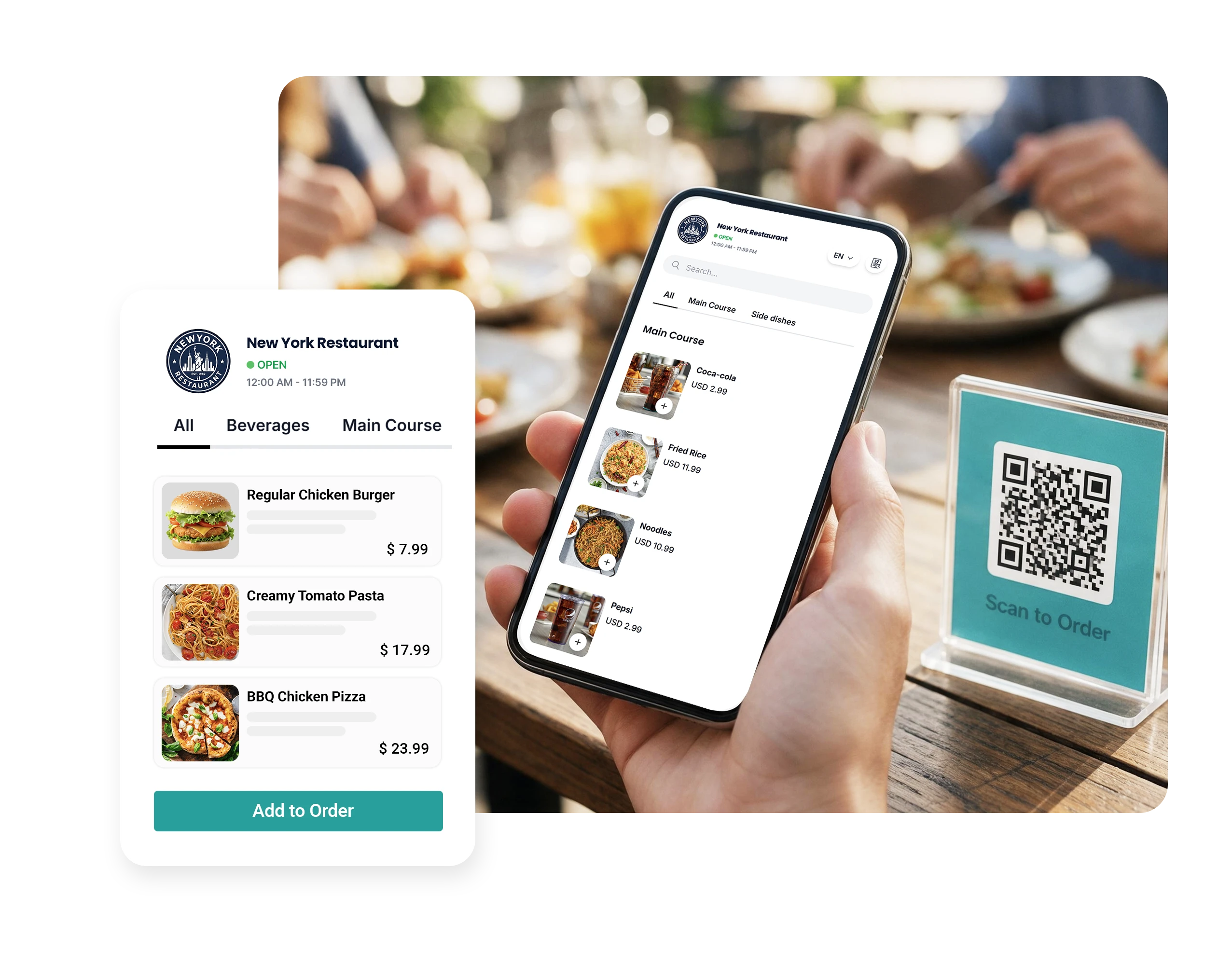
  • Customers scan the QR code placed at their table or service area.
  • The digital menu opens directly on their smartphone.
  • No separate ordering device is required.
  • Provide a convenient and contactless ordering experience.
Digital Menu Experience

Digital Menu Experience

Make it easy for customers to browse your menu, explore products, and customize their orders.
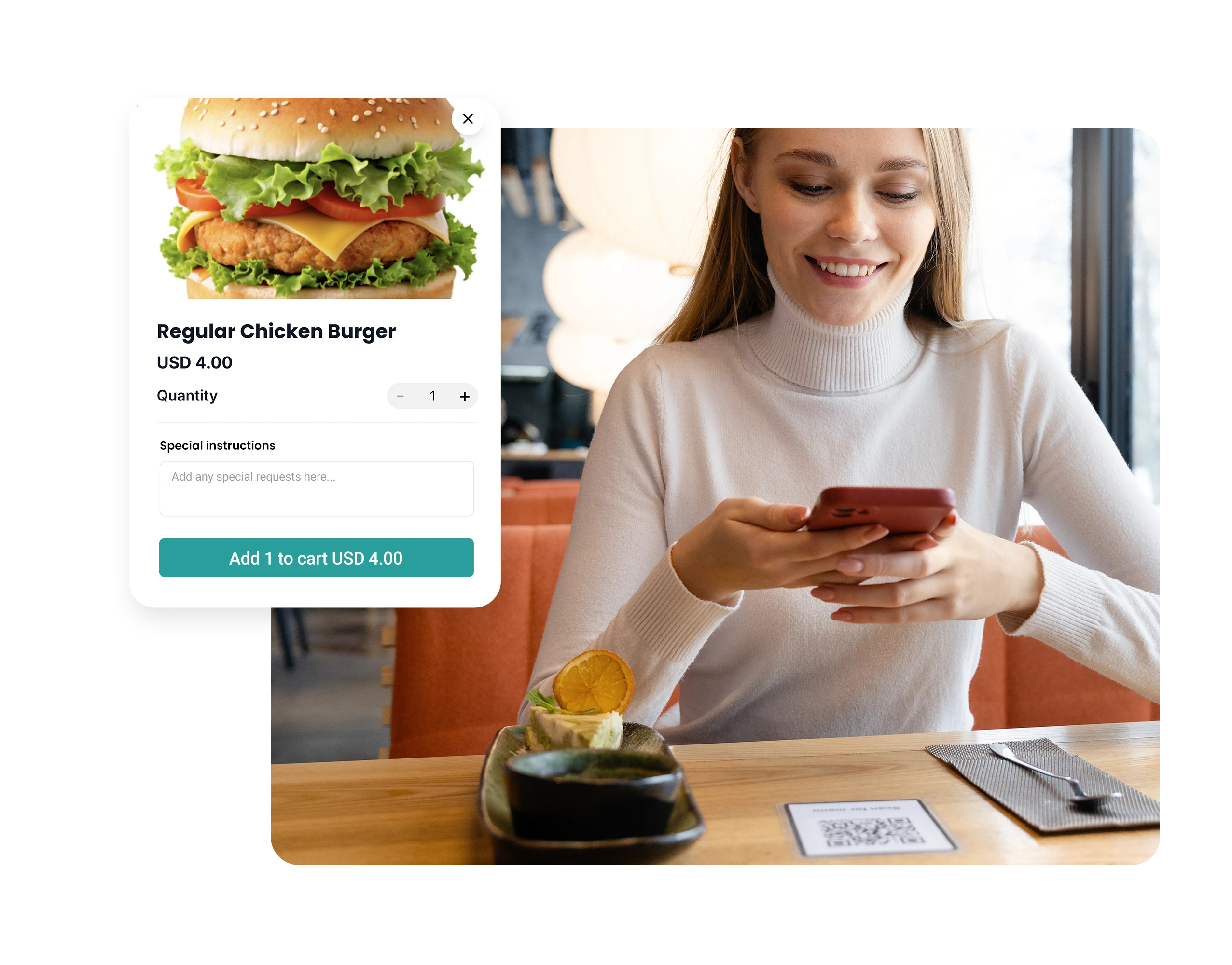
  • Display your business name, logo, and business opening hours on the ordering interface.
  • Allow customers to change the menu language (supporting over 15 languages).
  • Display products by category with images for easy identification.
  • Customers can add special instructions to their orders for staff and kitchen teams.
Customize & Place Orders

Customize & Place Orders

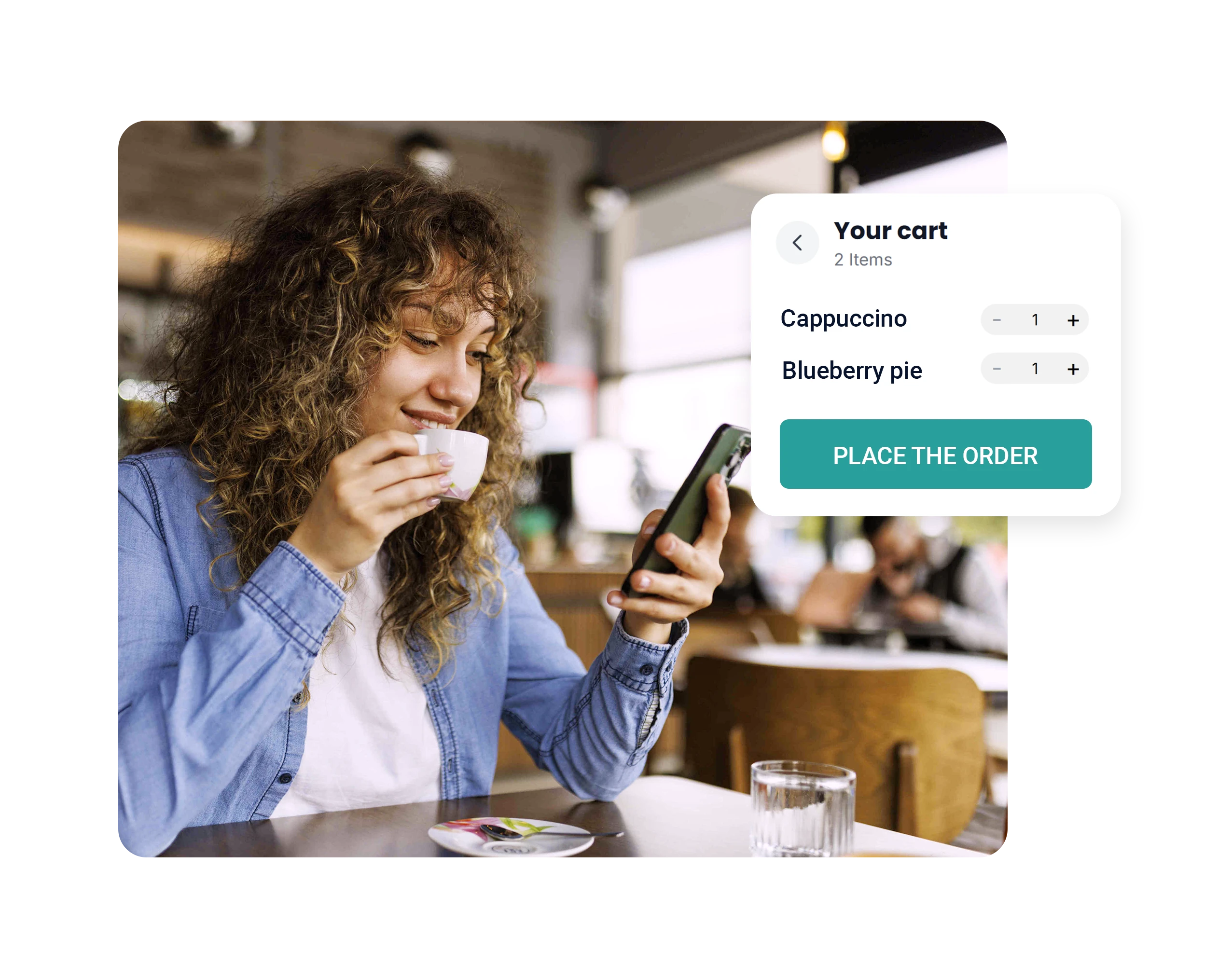
Customers can customize their selections and submit orders directly through the QR Ordering interface.
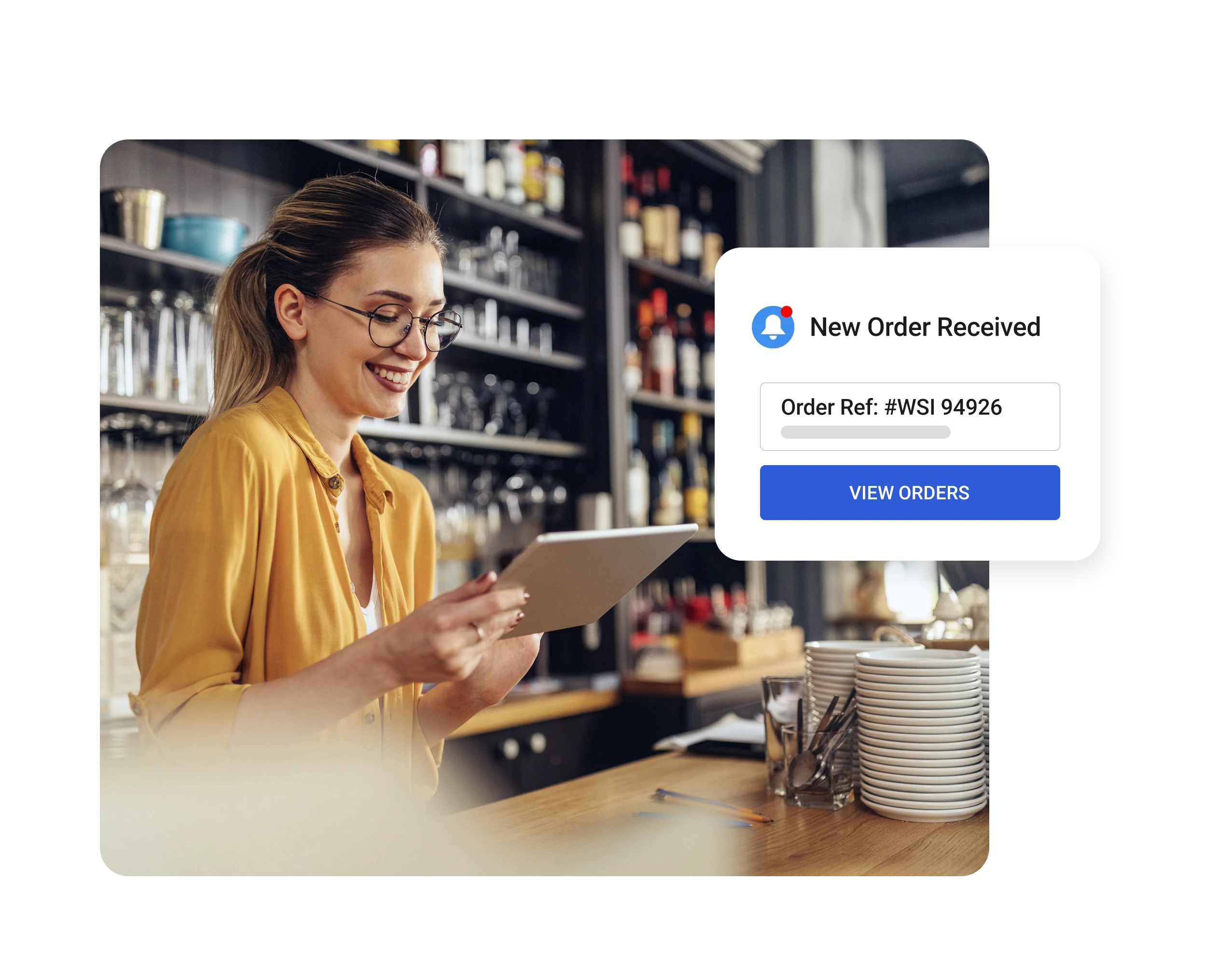
  • Select product variants, sizes, modifiers, and other available options.
  • Review and customize items before placing the order.
  • Receive an order reference number after submission.
  • Orders are reviewed and accepted by the POS user before preparation.
Real-Time Order Notifications & Approval

Real-Time Order Notifications & Approval

Get instant alerts for new QR orders and give staff control to review, approve, or reject them before preparation begins.
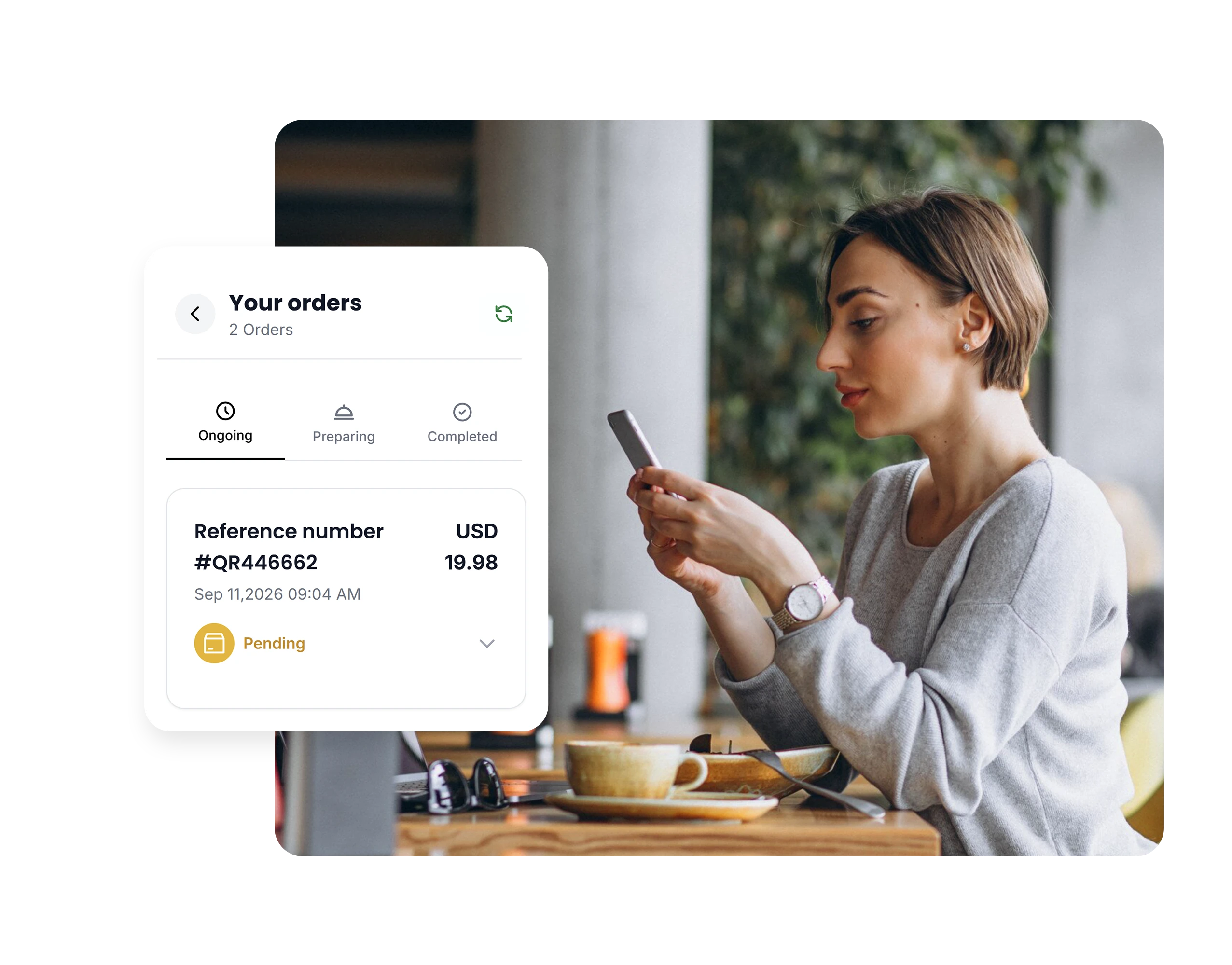
  • A red notification icon appears in the SalesPlay POS when a new QR order is received.
  • A notification sound alerts staff that a new order is waiting.
  • Cashiers or authorized POS users can review and approve or reject incoming orders.
  • Approved orders move to Preparing, while rejected orders move to Rejected, giving the business control before preparation begins.
  • Staff can edit QR orders when customers request changes, including products, quantities, or order details.
Order Status Tracking

Order Status Tracking

Customers can view the status of their submitted orders through the ordering interface.
  • Submitted / Order Reference – The customer has placed the order and received an order reference, but the order has not yet been approved for preparation.
  • Preparing – The order has been approved by the POS user and is being processed.
  • Rejected – The order has been rejected by the business.
Kitchen & Bar Integration

Kitchen & Bar Integration

Send approved QR orders directly to the kitchen or bar, helping staff receive and prepare orders quickly and accurately.

  • Send approved orders to connected KOT/BOT printers.
  • Display orders on connected kitchen or bar displays.
  • Route orders to the appropriate preparation area based on your configuration.
  • Help kitchen and bar staff receive orders without relying on manual communication.
READY TO GET STARTED?

Let’s get started with SalesPlay POS

Take control of your sales, inventory, and daily business operations with a smarter POS built for growing businesses.
Get Started Free
Already have a SalesPlay account?

FAQs

Is QR Ordering only for restaurants?

No. SalesPlay QR Ordering can be used by any business that has a customer ordering process. It is suitable for restaurants, cafés, hotels, bakeries, retail stores, supermarkets, food courts, and other businesses where customers need to browse products and place orders.

How does SalesPlay QR Ordering work?

First, the business needs to set up QR Ordering through the SalesPlay Back Office and generate a QR code. The QR code can then be printed and placed at the business entrance, on tables, or in other suitable locations where customers can easily scan it.

Customers scan the QR code using their smartphone to open the digital menu or product list. They can browse products, customize their selections, add special instructions, and place their order.

The order is then received in the SalesPlay POS, where staff can review and approve or reject the order. Once the order is approved, staff can process it and send it for preparation if applicable.

Do customers need to install an app to place a QR Order?

No. Customers can scan the QR code and place their order directly through their smartphone without installing a separate ordering app.

Can customers customize their orders?

Yes. Customers can select available variants, sizes, modifiers, and other options. They can also add special instructions or notes to their order.

Can customers place orders without creating an account?

Yes. Businesses can enable Guest Ordering, allowing customers to place orders without registering or logging in. Businesses can also choose which customer details are required and whether OTP verification is needed.

Can I require customers to sign up or log in before ordering?

Yes. You can enable Sign Up or Login Required for Ordering. Customers will then need to register or log in before placing an order. This can make repeat ordering more convenient.

Can staff approve or reject QR Orders before they are prepared?

Yes. New QR Orders appear in the SalesPlay POS, where authorized users can review, approve, reject, or edit orders. Approved orders can then move to preparation.

Can QR Orders be sent directly to the kitchen or bar?

Yes. Approved orders can be sent to connected KOT/BOT printers or kitchen and bar displays. Orders can also be routed to the appropriate preparation area based on your configuration.

Can I display promotions on my QR Ordering or Web Store?

Yes. You can add up to 5 promotional banners to your QR Ordering / Web Store to highlight promotions, discounts, special offers, or important information.

Can I create QR codes for individual tables or service areas?

Yes. You can create QR codes for individual tables or service areas. Each QR code can be associated with the relevant shop, terminal, order type, and service area, making it easier to identify where an order was placed.

✖